
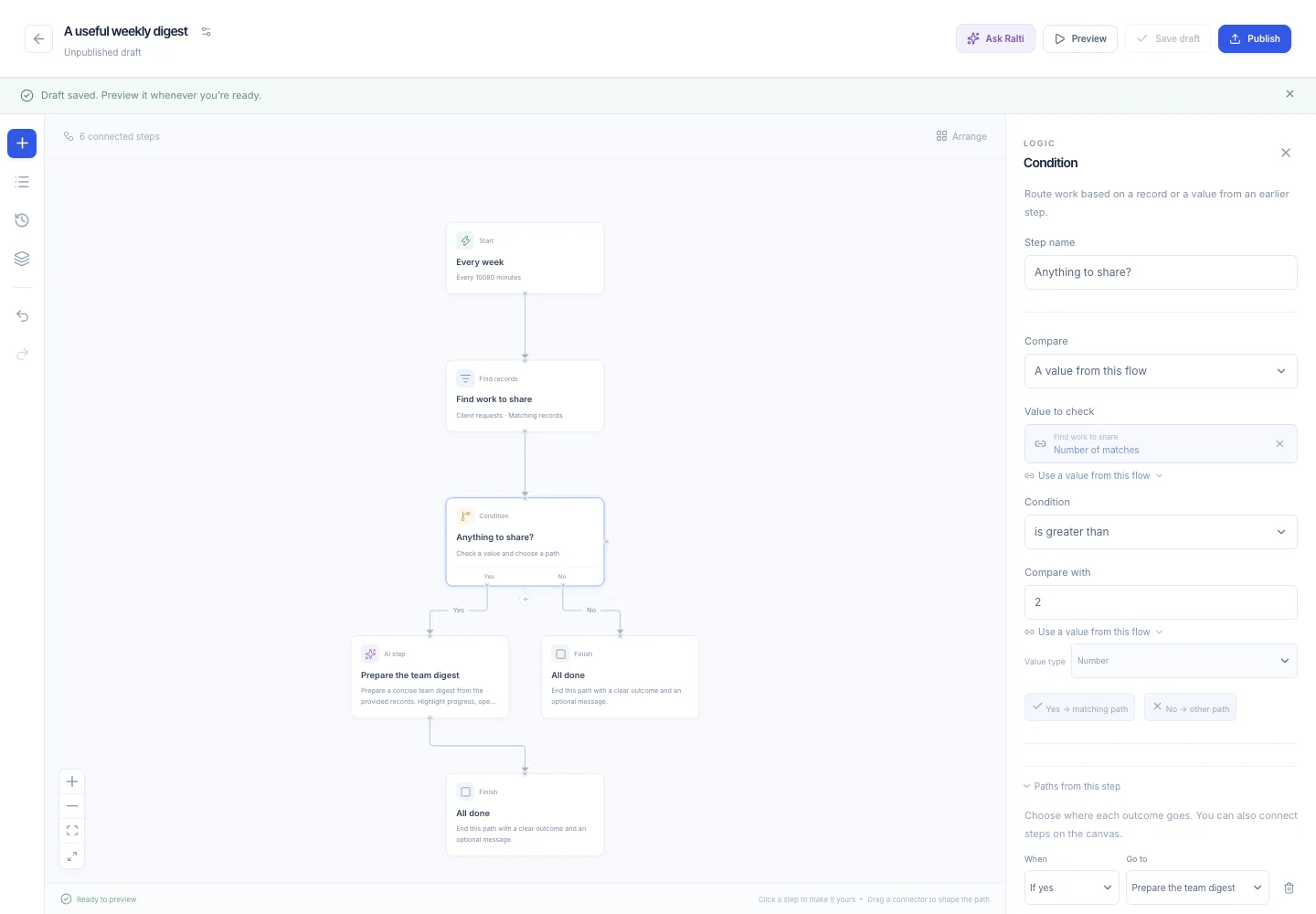
Start with something useful
Choose a starter for an approval, record brief, scheduled report, project kickoff, or weekly digest. Keep the parts that fit, add a step, and connect what happens next.
- Manual, scheduled, record-created, record-changed, and incoming-email triggers
- A visual canvas with zoom and automatic arrangement
- A Steps view and path controls for touch and keyboard use
Give every decision a place
Branch on a value, pause for a person, wait until later, or run work in parallel. Pass an earlier step’s result into the next one without repeatedly entering the same details.
- Conditions, approval gates, waits, parallel branches, and joins
- Bounded loops over a set of records
- Reusable published workflows for work you want to call again
Let AI work inside the flow
Ask Ralti to draft or revise a workflow, then review the proposed changes before accepting them. Add AI steps for summaries and interpretation, with clear instructions, permitted context, and outputs that later steps can use.
- AI authoring creates an editable draft for review
- Choose the input and expected output for each AI step
- AI proposals need acceptance; publishing is a separate action
Keep the result close to the work
Find or update records, prepare a document, generate a saved report, create a private email draft, or notify a teammate. For an external service, configure an approved HTTPS webhook with credentials kept on the server.
- Native steps for the records and outputs already in Ralti
- Email stays a draft until someone reviews and sends it
- Inbox access is explicit; including message bodies needs an additional opt-in
Know what ran. Know what needs you.
Preview the draft to inspect its paths without applying changes or sending requests to external services. Publish when it is ready. Publishing activates the configured trigger; start manual runs with Run. Each run keeps the version it started with.
- Step-by-step inputs, outputs, timing, and outcomes
- Assigned approvals, resumable waits, and eligible failure recovery
- Saved publication history; restore a version into a draft for review
A little more clarity.
Do I need to build everything from scratch?
No. Start with one of five workflow patterns or ask Ralti to create a draft from your description. You can change the steps, connections, and settings before publishing. AI features require a configured provider.
What happens to existing automations?
They remain available under Existing helpers with their original settings and history. You can import a helper into a workflow draft deliberately; importing does not publish or run it.
Is Preview a live run?
No. Preview shows the draft’s behavior without applying record changes, sending notifications, or calling webhooks. Simulated or skipped steps are identified. Live runs use a published version and execute through the background worker. Publishing activates scheduled and event triggers; pause the flow to stop future automatic starts.